
You can share a dashboard from All Dashboards with different users and give them the read, edit, or full permissions. Any changes made in the dashboard are visible to all the shared users. However, auto-arranging or re-arranging a widget’s size and position is reflected only on the current user’s dashboard.
Go to Dashboard from the navigation bar.
Select the dashboard you want to share and click Share.

Sharing a Dashboard
Select a User Group. All the users in that user group are listed in the drop-down.
Note
For details on configuring users and user groups, go to User Account Management.
Select the Read, Edit, or Full permission for the users. Selecting the Full permission allows the user to read, edit, remove, and share the dashboard.
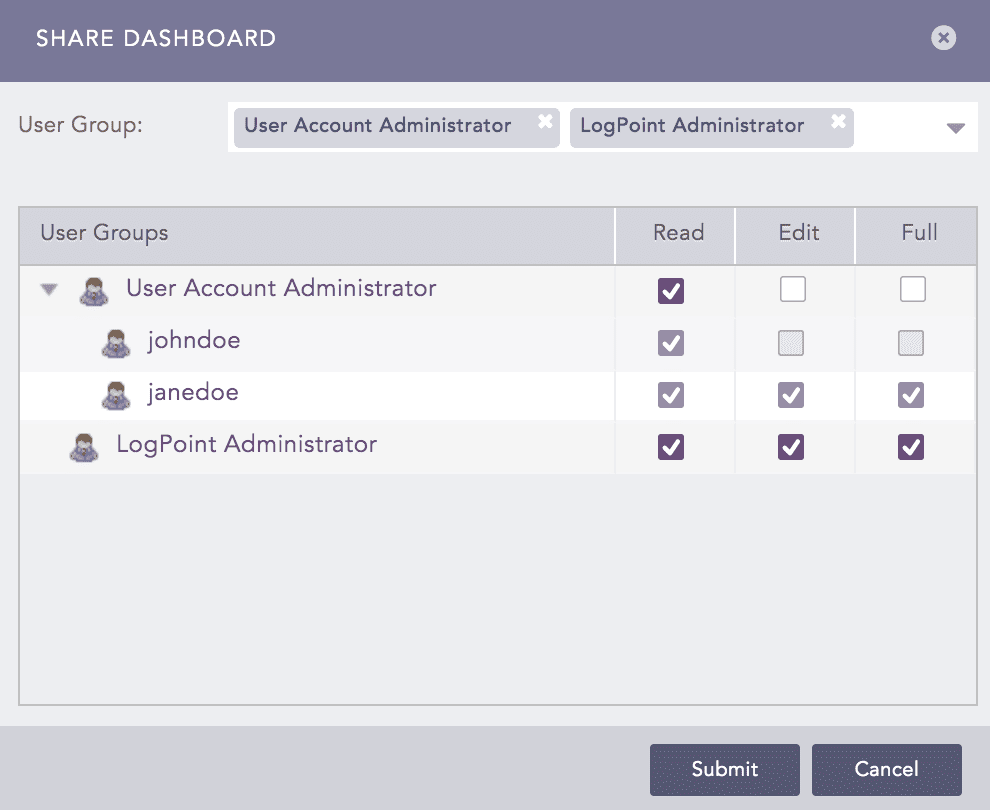
Selecting Permission for Users
Click Submit.
Note
You can’t share UEBA or vendor dashboards with other users.
By default, a new user has the same permission as the user group they belong to.
Go to Settings >> Knowledge Base from the navigation bar and click Dashboard.
Select My Dashboard from the drop-down.
Click the Share icon in the Actions column.
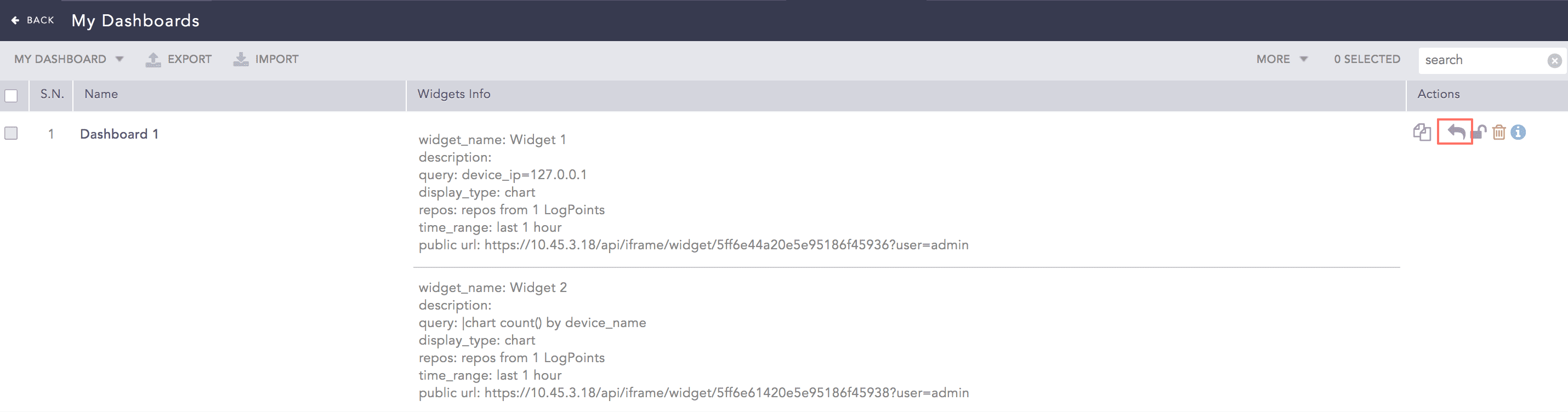
Sharing a Dashboard
Select a User Group. All the users in that user group are listed in the drop-down.
Select the Read, Edit, or Full permission for the users.
Click Submit.
Go to Settings >> Knowledge Base from the navigation bar and click Dashboard.
Select Shared Dashboard from the drop-down.
Click the Use icon in the Actions column.
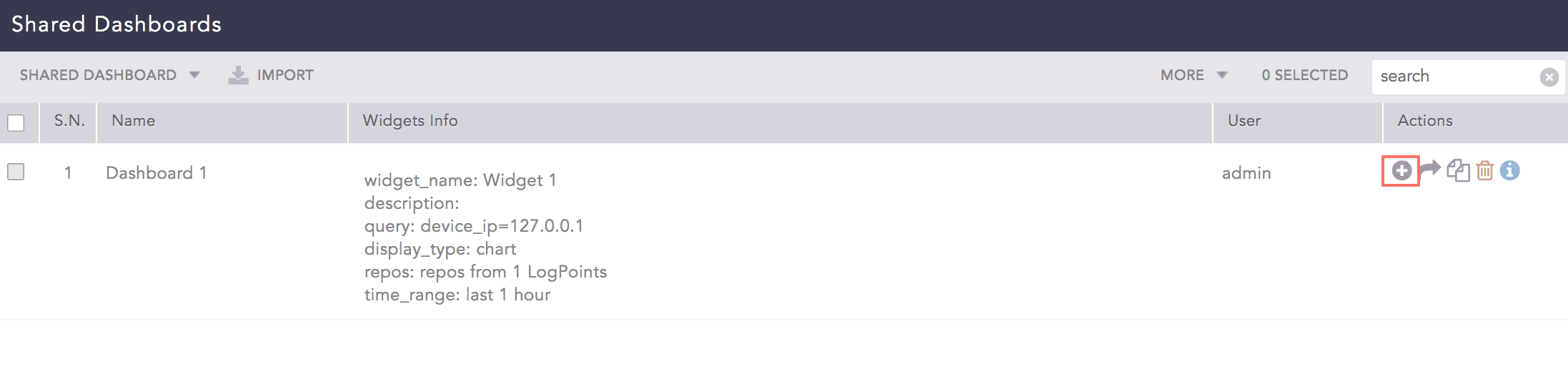
Using a Shared Dashboard
Note
If a user does not have access to a repo used in a shared dashboard, the data displayed comes from repos they have access to.
If only one repo is selected in the shared dashboard, and the user does not have access to the repo, the dashboard is empty.
When a widget’s graphs in a shared dashboard is changed by a user with the Edit or Full permission, the graphs are changed for all users. However, when a user with the Read permission changes a graph it only changes for them.
You can also use a shared dashboard from Add Dashboard.
Go to Dashboard from the navigation bar and click the + icon.
Select Shared Dashboards.
Select the dashboard you want to use and click Ok.
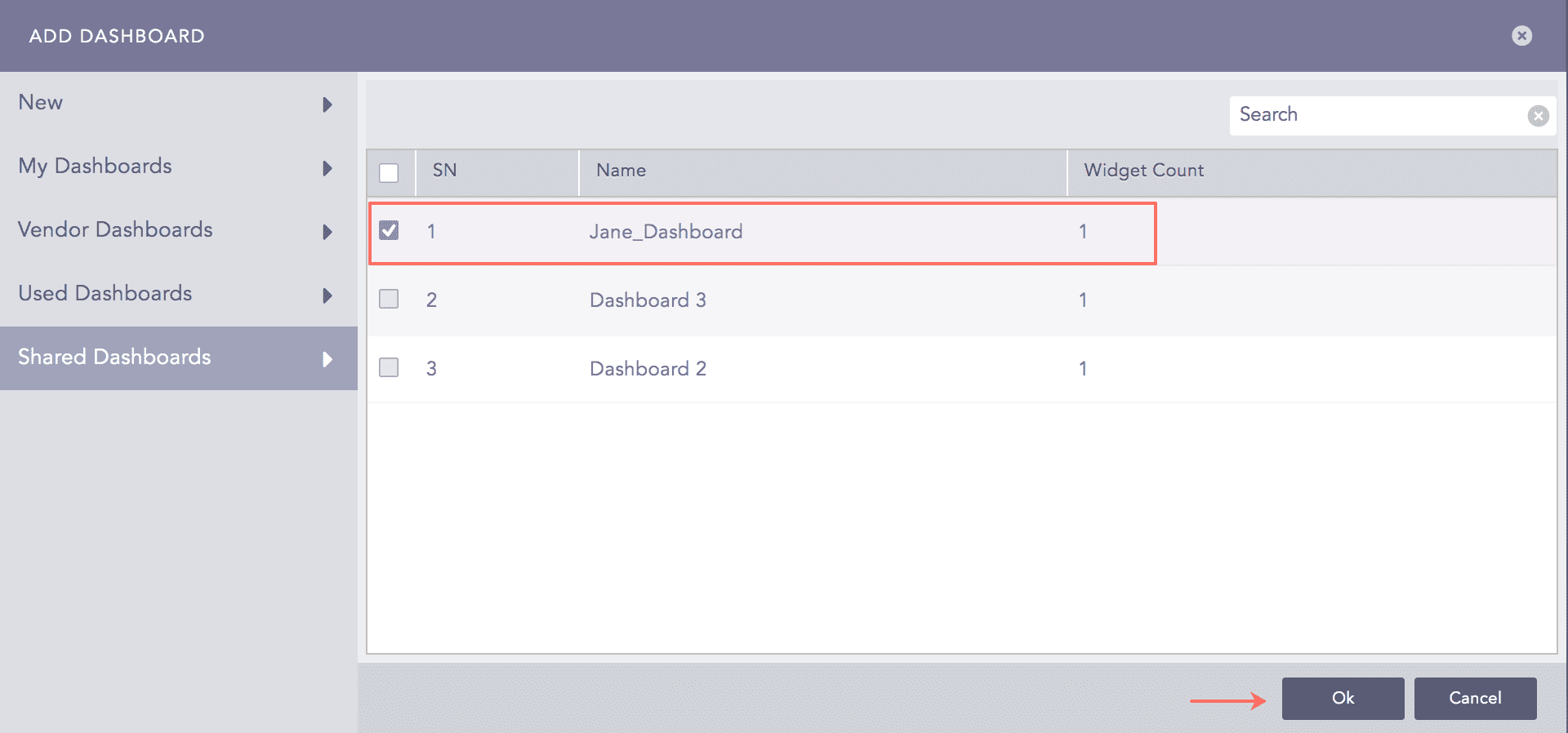
Using a Shared Dashboard
Choose Repos and click Ok.
Go to Settings >> User Accounts from the navigation bar and click Users.
De-activate the user by clicking the De-Activate User icon in the Actions column.
Click Manage De-Activated Users.
Click the Delete icon in the Actions column of the user.
Click Yes.
Note
You can do this using Transfer Ownership when you delete the user whose dashboard is being shared.
To transfer ownership, select a user from the drop-down and click Submit.
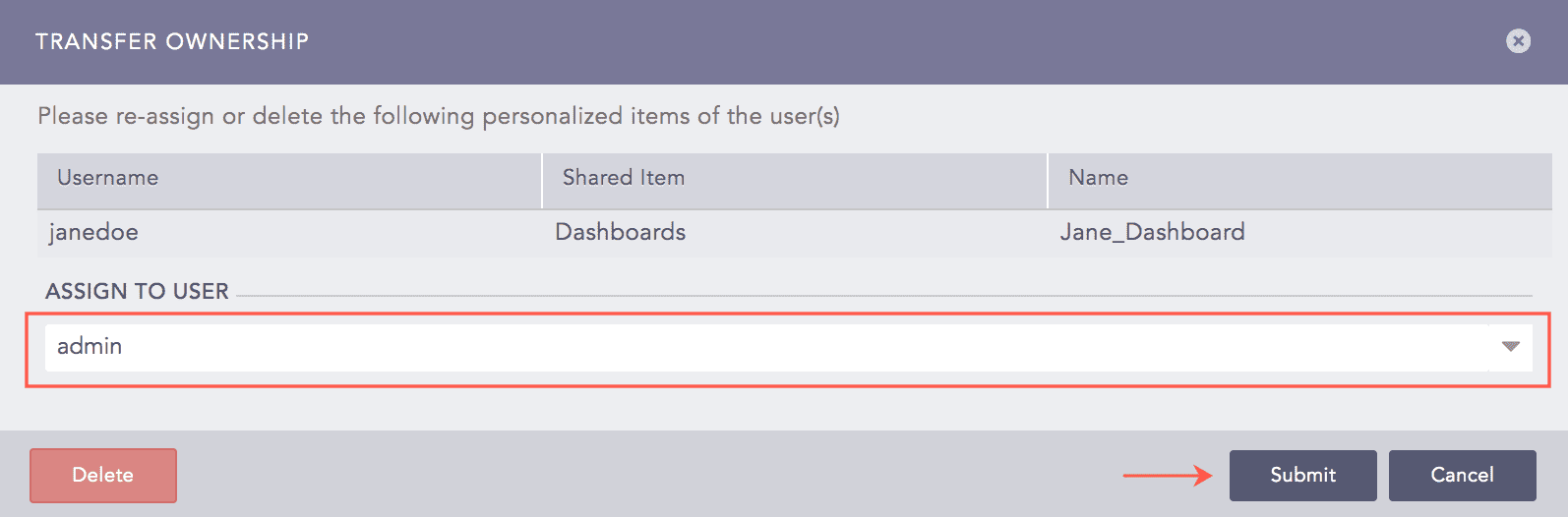
Transferring Ownership of a Shared Dashboard
Note
The transferred dashboard is listed in My Dashboards of the new owner.
To delete the user and user’s dashboard without transferring ownership, click Delete.
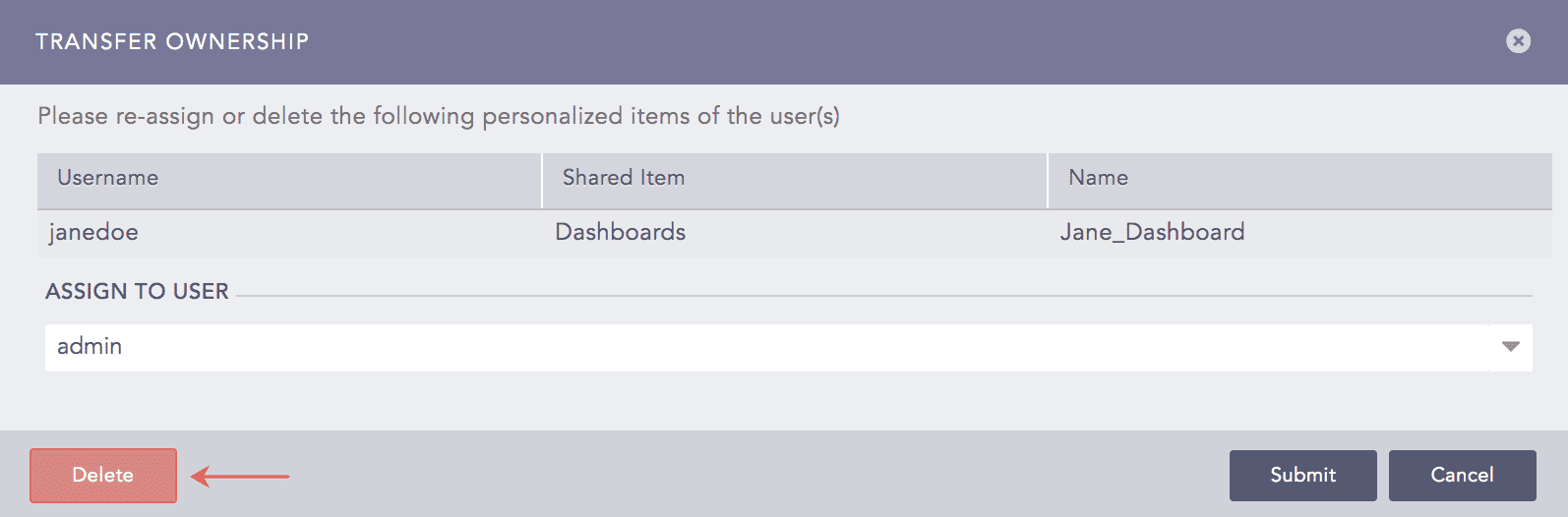
Deleting a Shared Dashboard’s Owner